In-app guide
Use Noxa Player
Remote buttons, menus, and TV screens — not a setup manual. Add your own legal playlist first:
Instructions.
Browse
Find a channel
Samsung
Home
→
Live TV
→
OK
→
Group
→
OK
→
▲
▼
→
OK
play
Android TV
Hub
→
Live TV
→
Search or group chip
→
Select channel
Yellow
All channels (Samsung)
Blue
Channel groups (Samsung)
CH+
CH-
Next / previous page
0–9
Jump to a channel number
While watching
Playback
Overlays hide after a few seconds. Press a key to bring them back.
▲
▼
Previous / next channel
◀
Samsung: player actions · Android: channel menu
OK
Samsung: channel list · Android: info bar
Green
Programme guide (EPG)
Red
Reload stream / playlist
Info
Activation QR (Samsung)
Android extras:
F
Fit/Fill ·
M
player settings ·
S
search
Display
Change video size
Samsung
◀
then
OK
on Video size
Cycles Auto → Fit → Fill → Stretch → Zoom
Android TV
Press
F
or open
M
player settings
Fit to screen or Fill screen
Web panel
Device ID & QR
Scan the QR or type the Device ID manually on the website. Device ID looks like AA:BB:CC:DD:EE:FF.
1
On first launch, scan the QR on Activate on web.
2
Later: Settings → Show web activation QR, or enter the Device ID manually.
3
Playlist QR lives on the Playlist tile (Samsung) for My List.
4
Red
on setup opens Connection details.
OK
re-checks status.
Configuration
Settings
Home → Settings, or
Tools
while browsing.
Video size
Default fit mode
Playback engine
Samsung AVPlay / Compatibility
Parental controls
Samsung PIN lock
Show web activation QR
Device ID prefilled on the website
Reload playlist
Fetch channels and EPG again
Panel API
Server / connection details
Quick access
Favorites
Samsung
◀
→
Add to favorites
→
OK
Browse: Live TV → Favorites group. Stored on the TV (up to 200).
Android TV
Uses Recently watched instead of favorites. Added automatically when you start playback.
Family lock
Parental controls
Samsung only. Android TV has no PIN lock in this release.
1
Settings → Parental controls →
OK
2
Set PIN with
0–9
(4 digits) →
OK
3
Turn On. Optional: Hide adult content.
4
Restricted items ask for PIN. Unlock lasts ~5 minutes.
Reference
Remote keys
Back
Go back / close overlay
Red
Reload · setup details
Screens
What it looks like
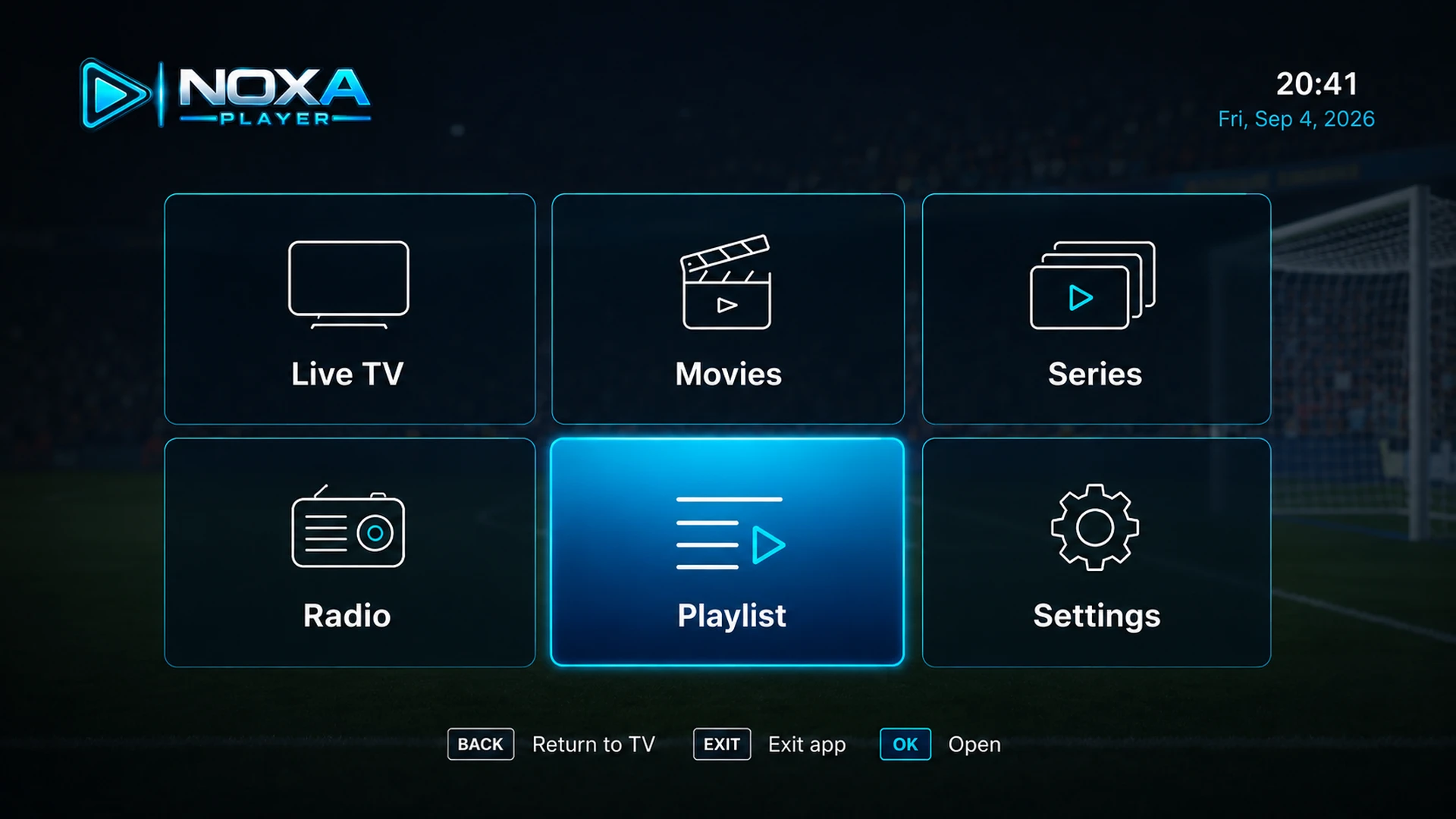 Home
Home
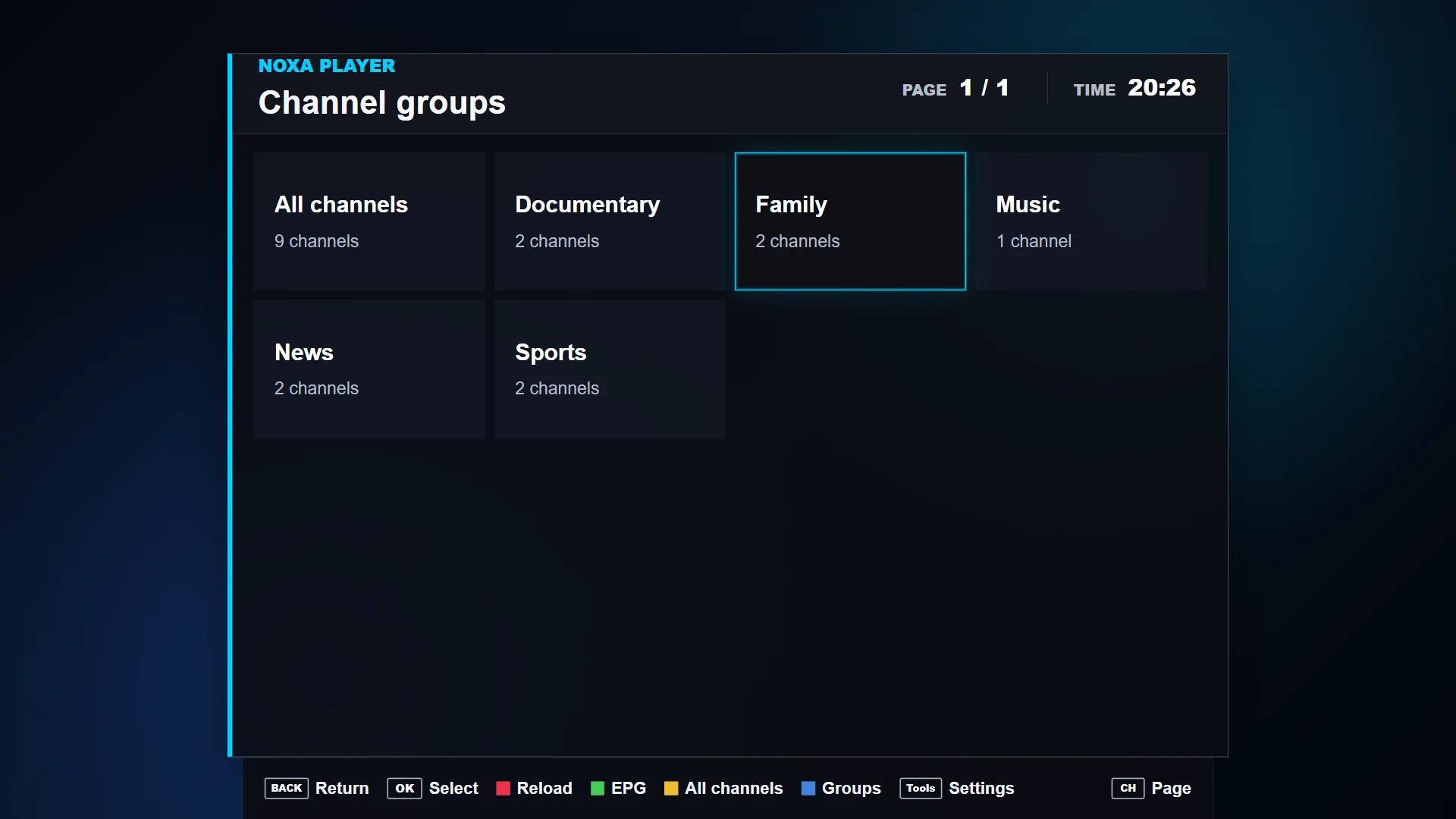 Live groups
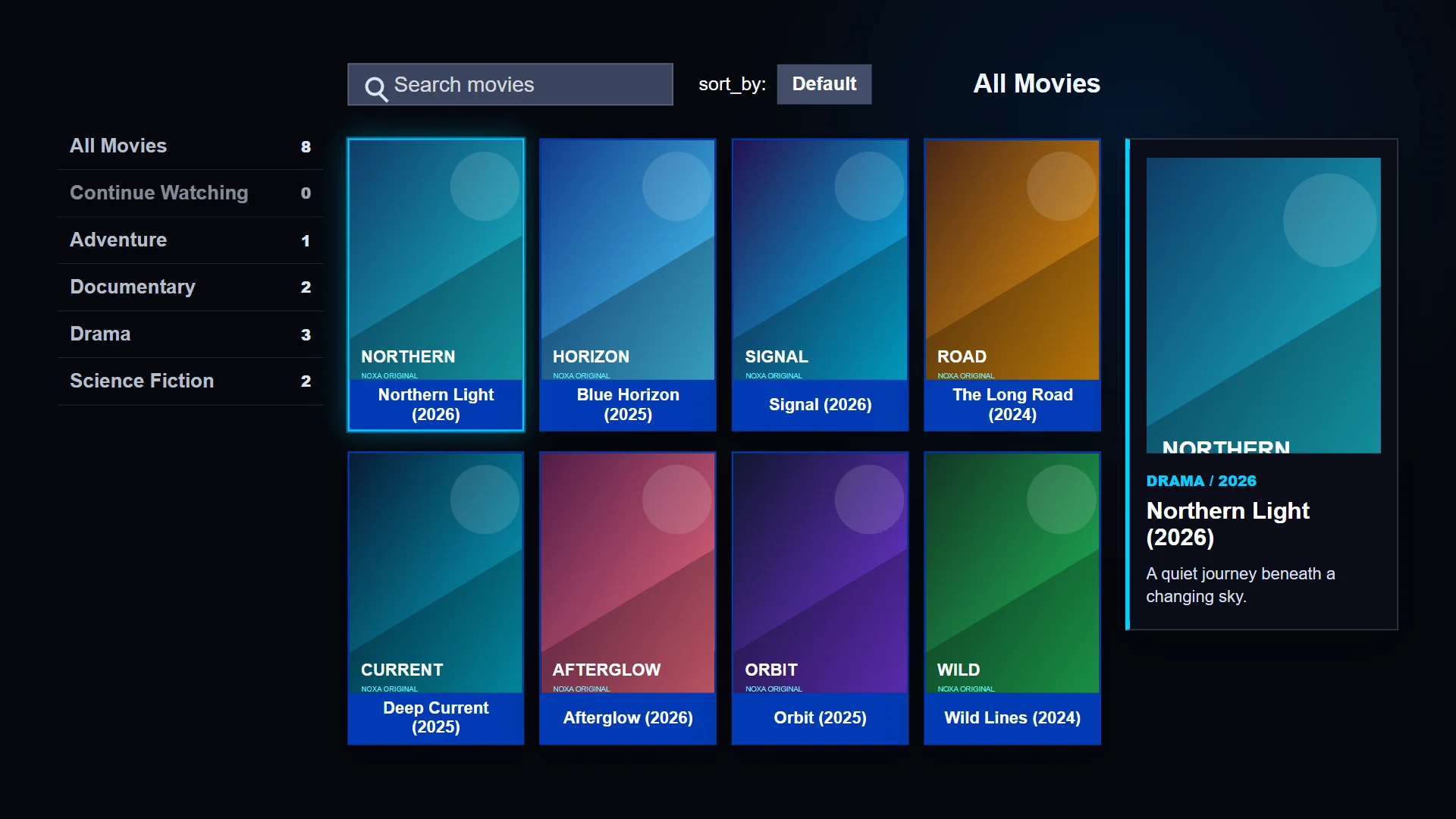 Movies
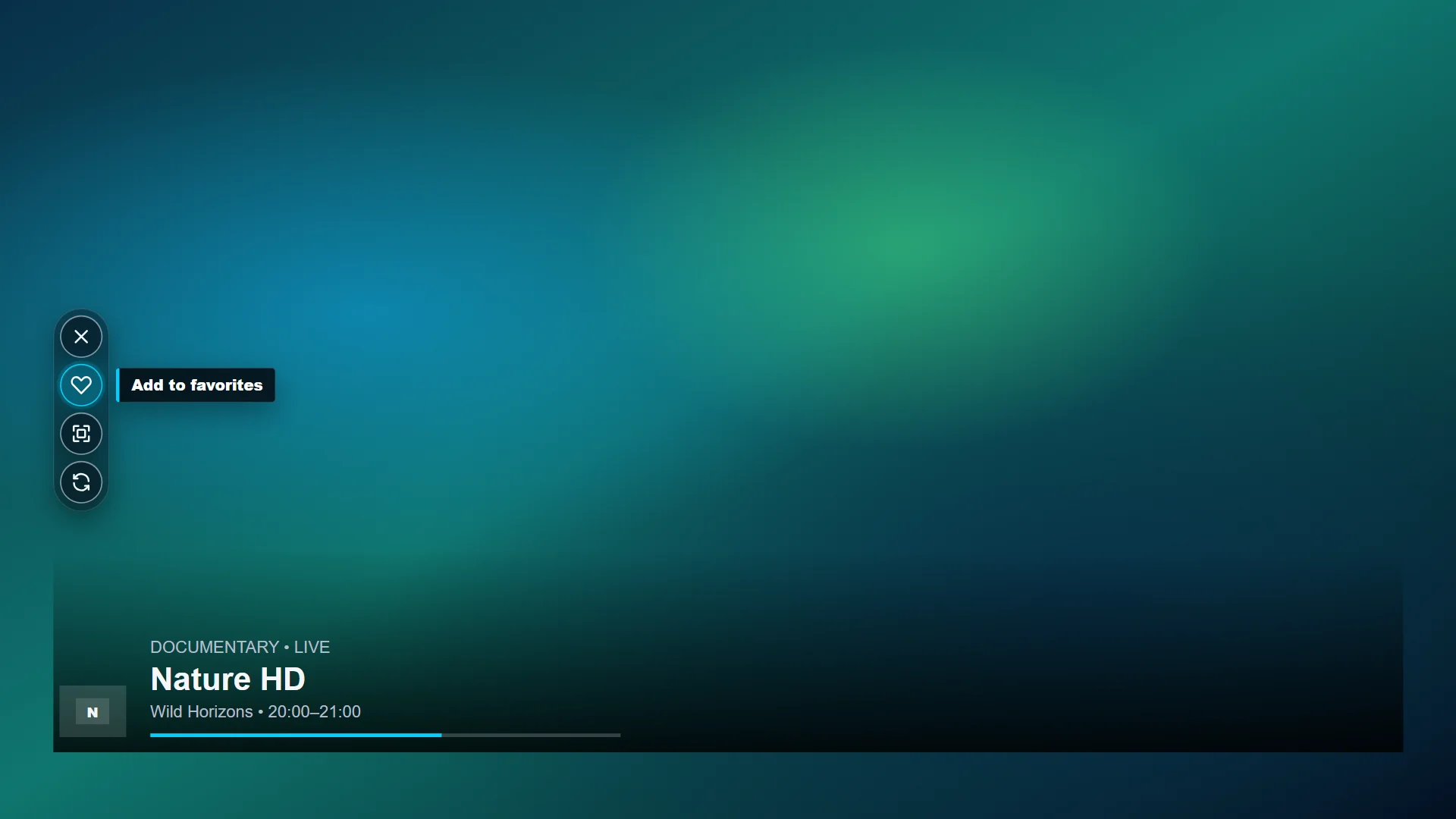 Now playing
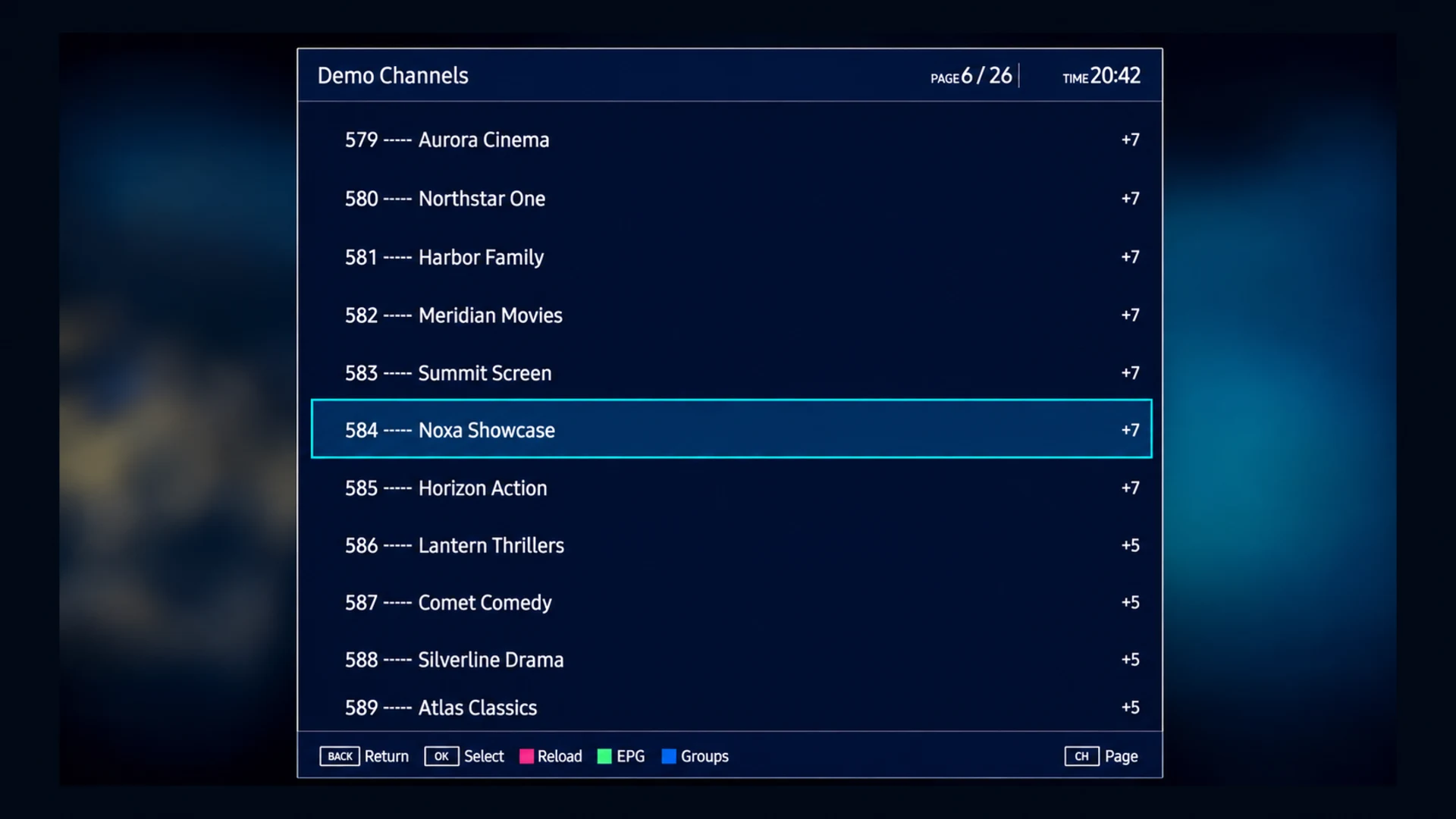 Channels
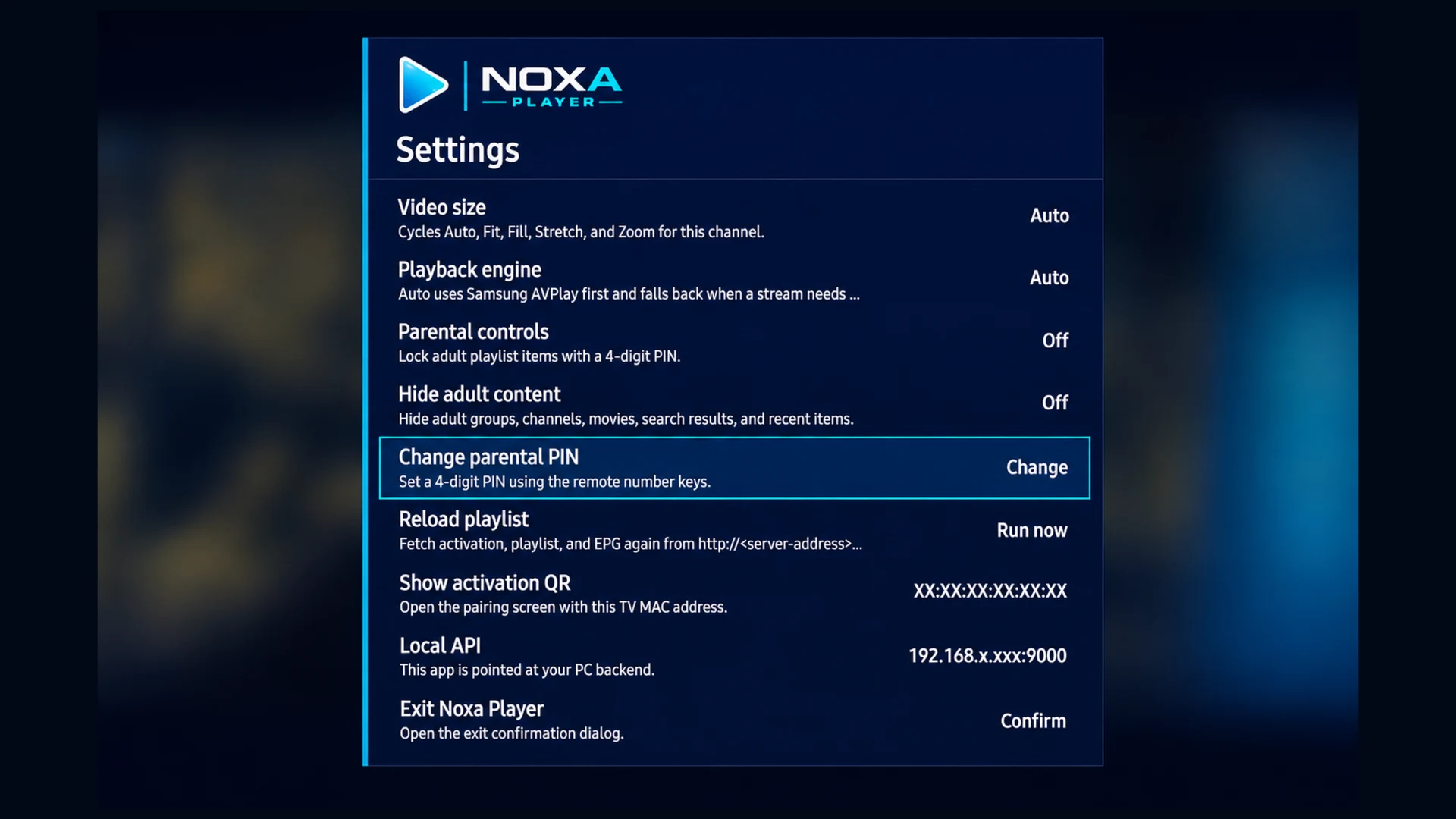 Settings
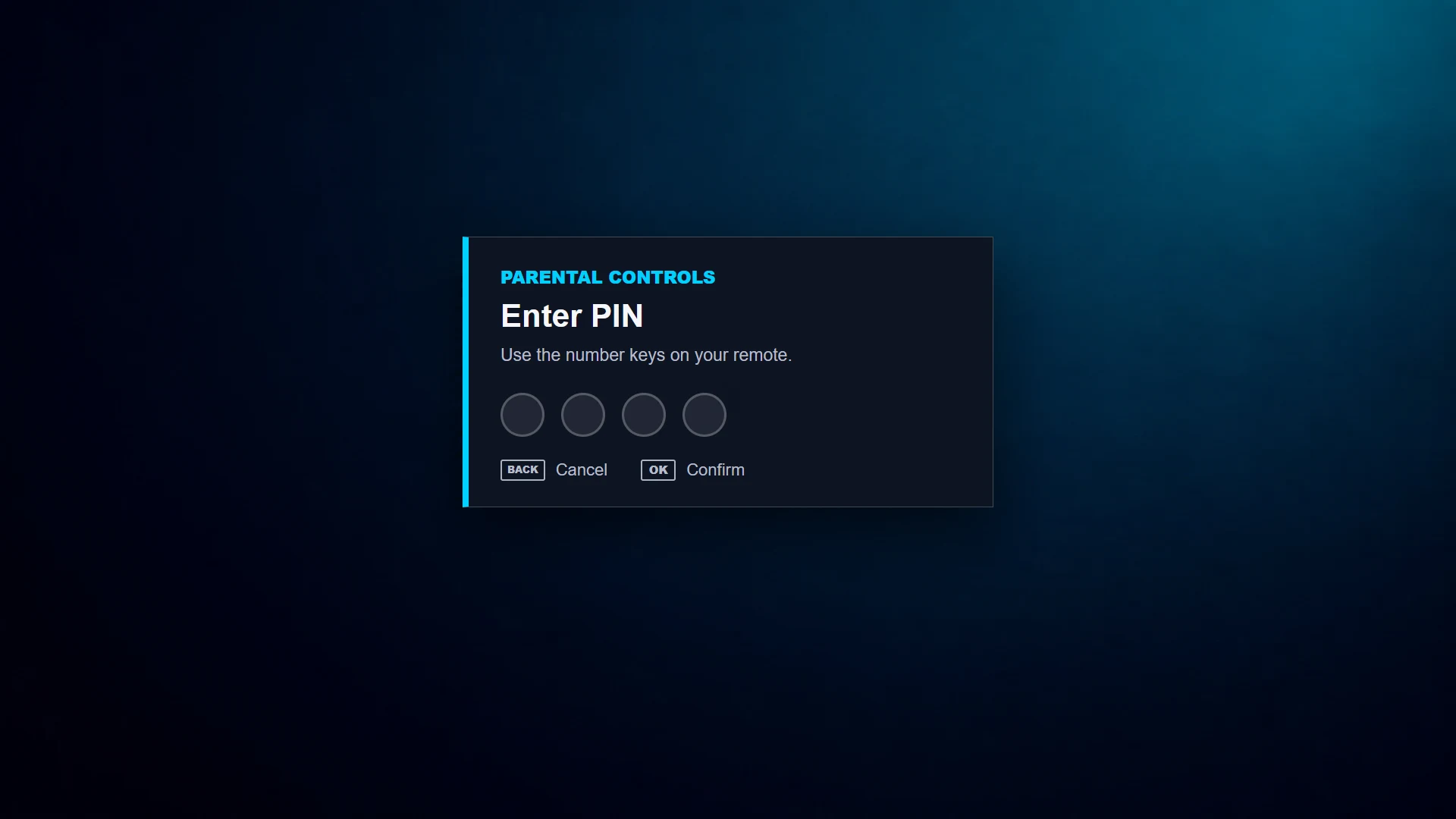 PIN
PIN
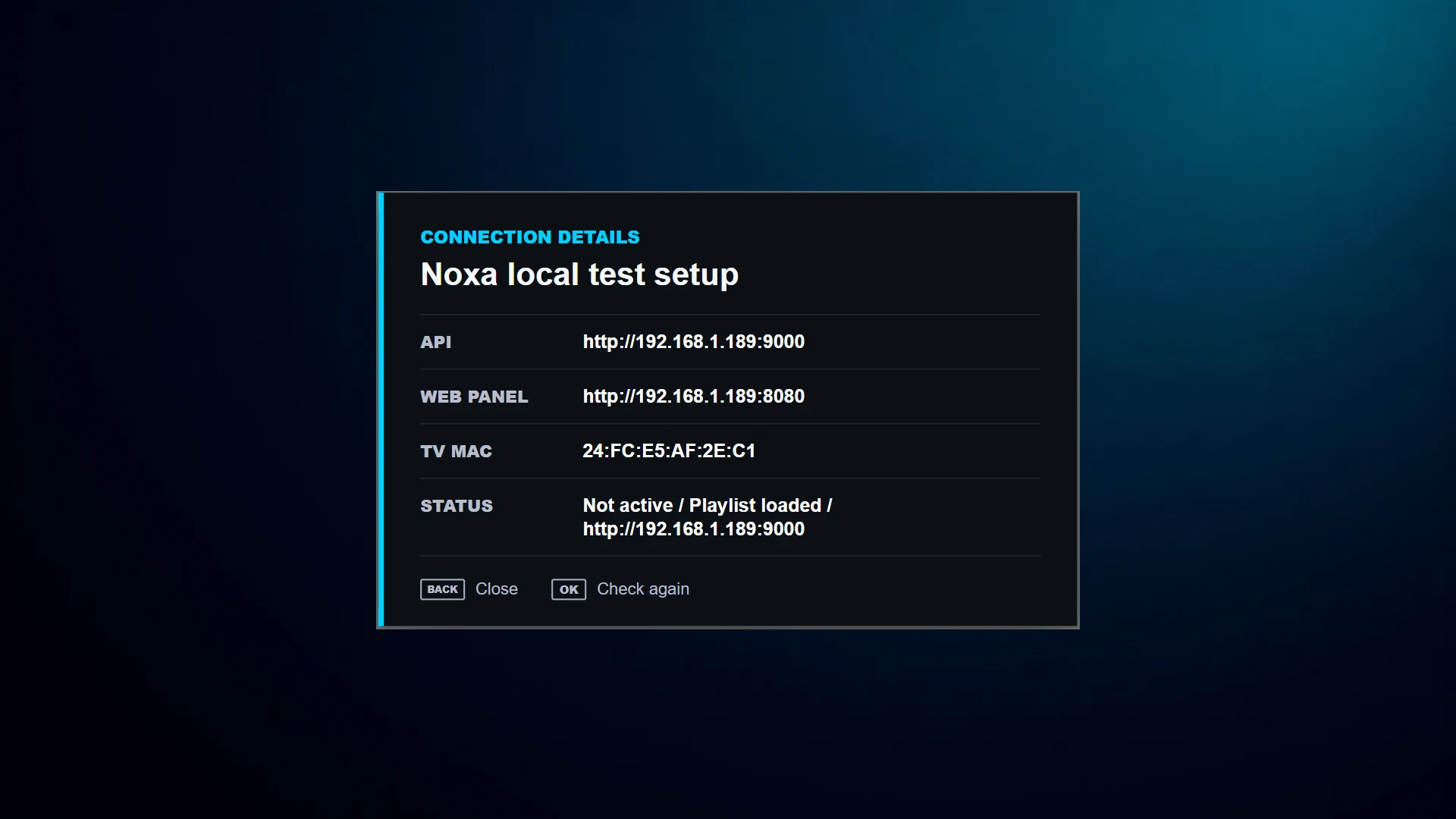 QR / MAC
Leave the app
Exit
Exit
or Settings → Exit Noxa Player → Stay / Exit application